Checklist Items
Hyperlists, Select Checklist Item, Checklist Item, and More! These three inputs work together to enable the creation of highly customized checklists.
Written By Patrick
Last updated 3 days ago
COMPANY ADMIN PERMISSION REQUIRED
Adding Checklist Items to a Form
There are three methods to get a checklist item from the tool into a form.
Planned Checklist Default Values - (Quality Only) - Uses the planned checklist builder to pull in groups or individual checklist items. USES THE HYPER LIST SETTINGS.
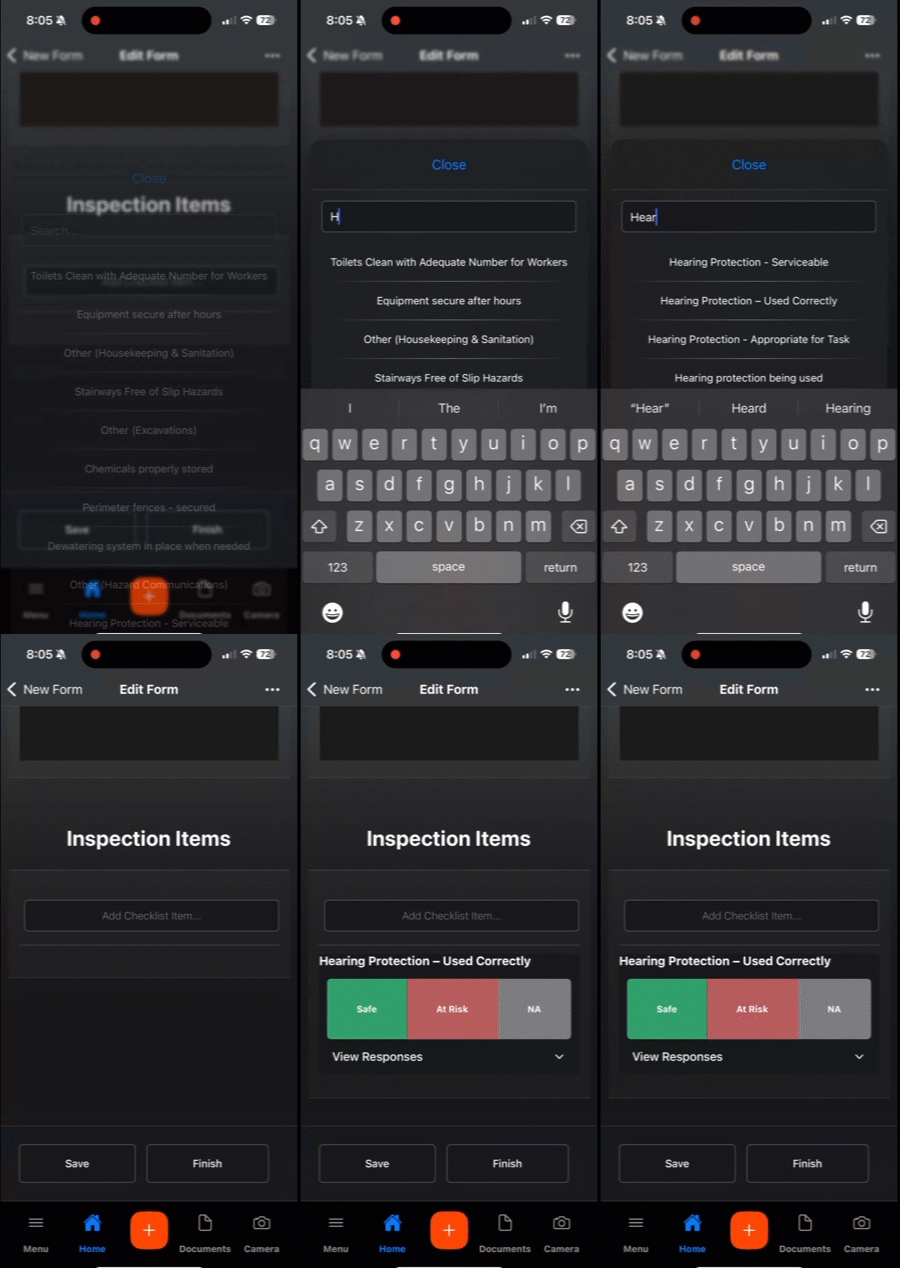
Hyper List - Adds an input on the form for the user to search thru checklist items from that tool.
Select Checklist Item Input - Inserting specific items into a template.
Checklist Item Settings:
Checklist items are highly customizable to accommodate unique projects and the different types of inspections (QC/Safety/Equipment).
Settings can be changed at the Tool or at the Template. The form looks to the Template First and then the Tool. Therefore from the form, settings are checked at the Template for True/False/Null and then the tool. If both tool and template are null then null is the result. if EITHER the template and/or tool are True/False then True/False passes to the Form.
Checklist Item Appearance:
Labels for everything from the checklist item itself to the buttons can be customized. Buttons can be removed as well by checking Hide.

Link to Observation options:
When to create an observation is a hot topic. Here are those options as well as others:
Default Response Required will trigger an observation to open.
Default Response Optional causes a 4th button to appear below Pass/Fail/NA that triggers an observation. Typically used for Pass in Quality.
Default Response of None logs the response but no observation triggered.
Allow Multiple lets a checklist item be selected multiple times.
Accumulate adds a window to enter a numerical quantity after the response.
Below is a comparison of settings options between the Tool and Template. Within the template are the two inputs of Hyperlist and Select Checklist Item
TOOL
Company Settings Gear>Checklist Items

TEMPLATE
Company or Project Settings Gear>Edit Template>Edit Hyperlist or Edit Checklist
HYPERLIST INPUT

CHECKLIST ITEM INPUT

Response Template
If an observation is required, use the Response Template drop down to choose what form appears when a response is selected. This list pulls from the Templates created under the Tool, so if a custom template is needed after pass or fail is selected, then create one under the tool and then link it to the checklist item here.

GOOD TO KNOW:
Here’s an example of what a hyperlist looks like in use on mobile: